At your desk on Mac
Use the menu bar, independent windows, a full-screen calendar or Background Widget Mode. Adjust transparency, lock a desktop calendar in place, and choose a time zone for each window.
Your calendar, a little further ahead
See a full year in your Mac's menu bar, with an optional clock behind the calendar. Turn trips and work rotations into colored plans, keep them in sync, and share a PNG or printable PDF.
Available for Mac, iPhone and iPad.One universal App Store purchase. No subscription.

A month, a year, or two years side by side.
Select dates for day counts, working days, and event totals.
Share a PNG or print-friendly PDF with the details you choose.
Background Widget Mode on Mac
Turn a regular calendar window into a desktop widget. Set background opacity to zero so dates sit over your wallpaper, keep the calendar behind other windows, and lock its size and position when it feels right.

Use Window opacity to fade the whole window and Background opacity to fade only its background. Set background opacity to zero for dates drawn over your wallpaper. The calendar controls remain clickable.
Use a calendar on the desktopOne universal app.
Colored plans, rotations, calendar sets, widgets, PNG and PDF export, and Apple Shortcuts. Controls and layouts adapt to each device.
Use the menu bar, independent windows, a full-screen calendar or Background Widget Mode. Adjust transparency, lock a desktop calendar in place, and choose a time zone for each window.
See the whole year, select dates with touch controls, check events and share plans on the go. Two years stack when space is narrow, and selection can continue across months and years.
Start with a year overview or add a second year and companion month. Wide layouts use the extra space, while narrower windows stack the calendar. Keep month and year selections independent.
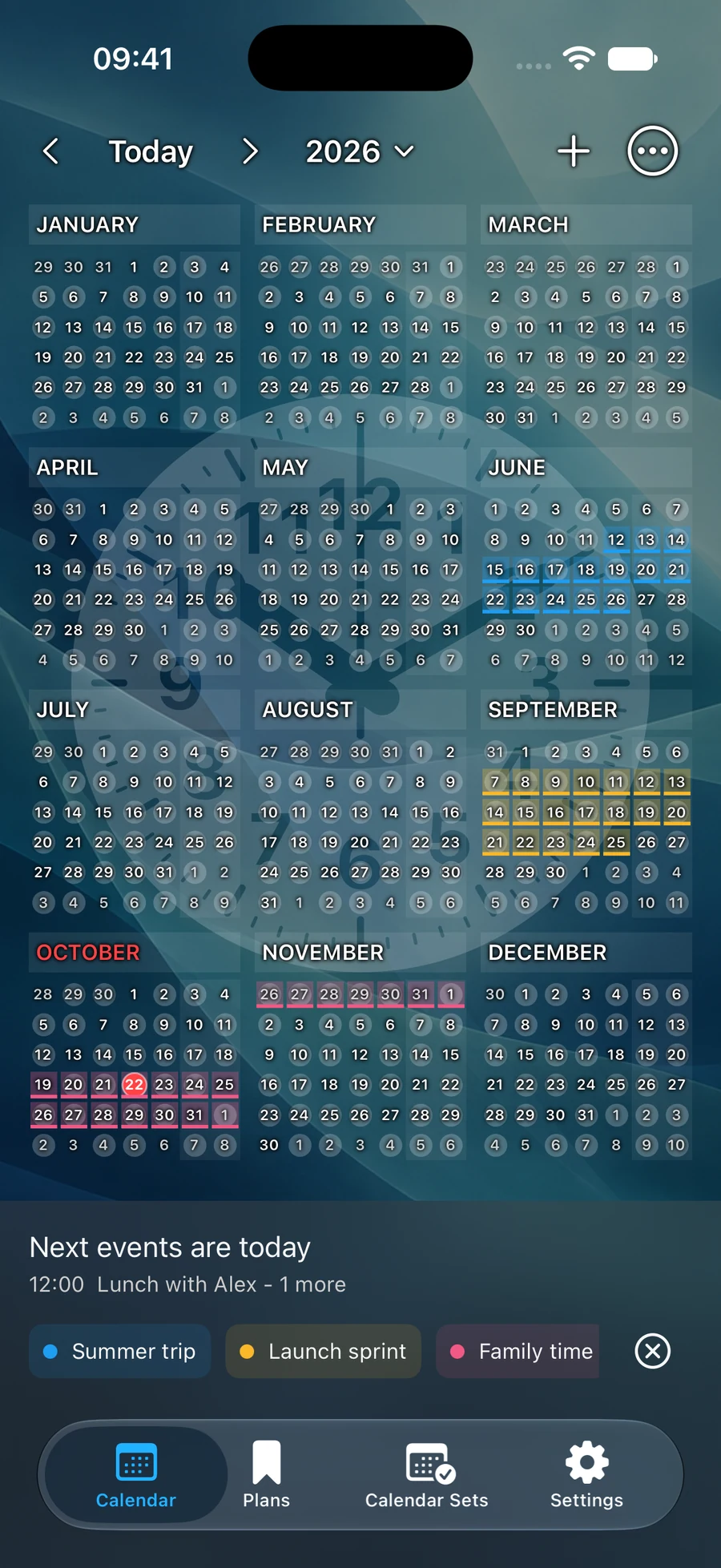
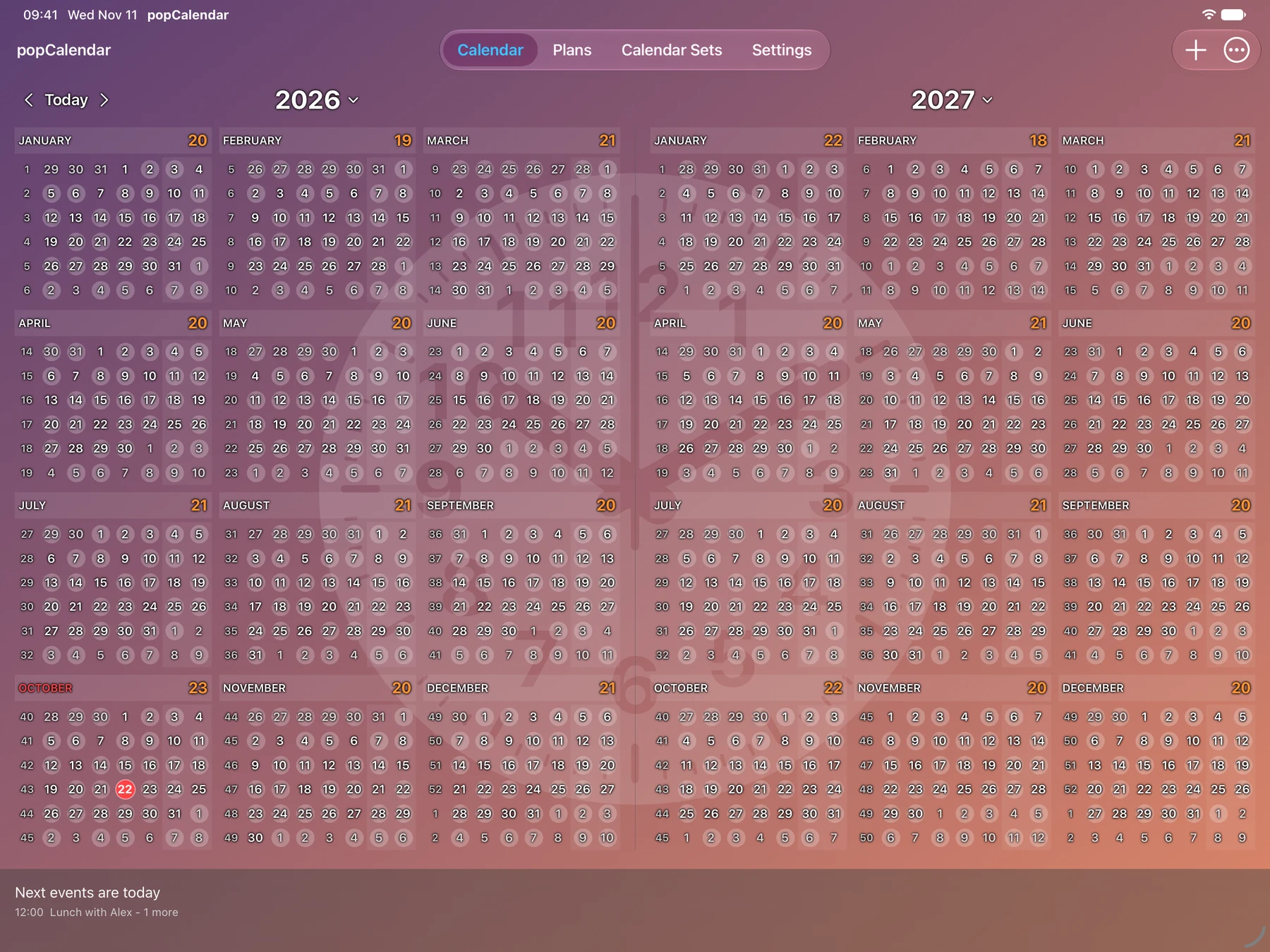
Saved ranges, annual repeats, alternating rotations, calendar sets, their order and working-day rules sync through your private iCloud account. Turn sync off on any device in Settings. Backgrounds and appearance stay personal to each device.
Sync your planning librarymacOS 12+ · iOS 17+ · iPadOS 17+
A native iPhone recording with sample events, showing the year, date selection, a work rotation, a month agenda and PDF export.
Apple widgets
Add Calendar, Today or Clock widgets on Mac, iPhone and iPad. Choose built-in images, color or gradient presets, a plain background or Follow app, and decide what each widget opens.
Calendar widgets can keep their own Calendar Set and a custom label below the months. Switching sets in the app does not change the widget's chosen set.


Start from the current month, quarter or year. Set different month offsets to see consecutive periods, or stack widgets on iPhone and iPad to browse further ahead.
Set up your widgetsMac widgets require macOS 14 or later. Full-year widgets require macOS 27, iOS 27 or iPadOS 27. Other mobile widget sizes work on iOS 17 and iPadOS 17 or later.
Saved plans and repeating rotations
A trip, a project, time with family. Give each plan a name and a color, then see them together without creating calendar events.
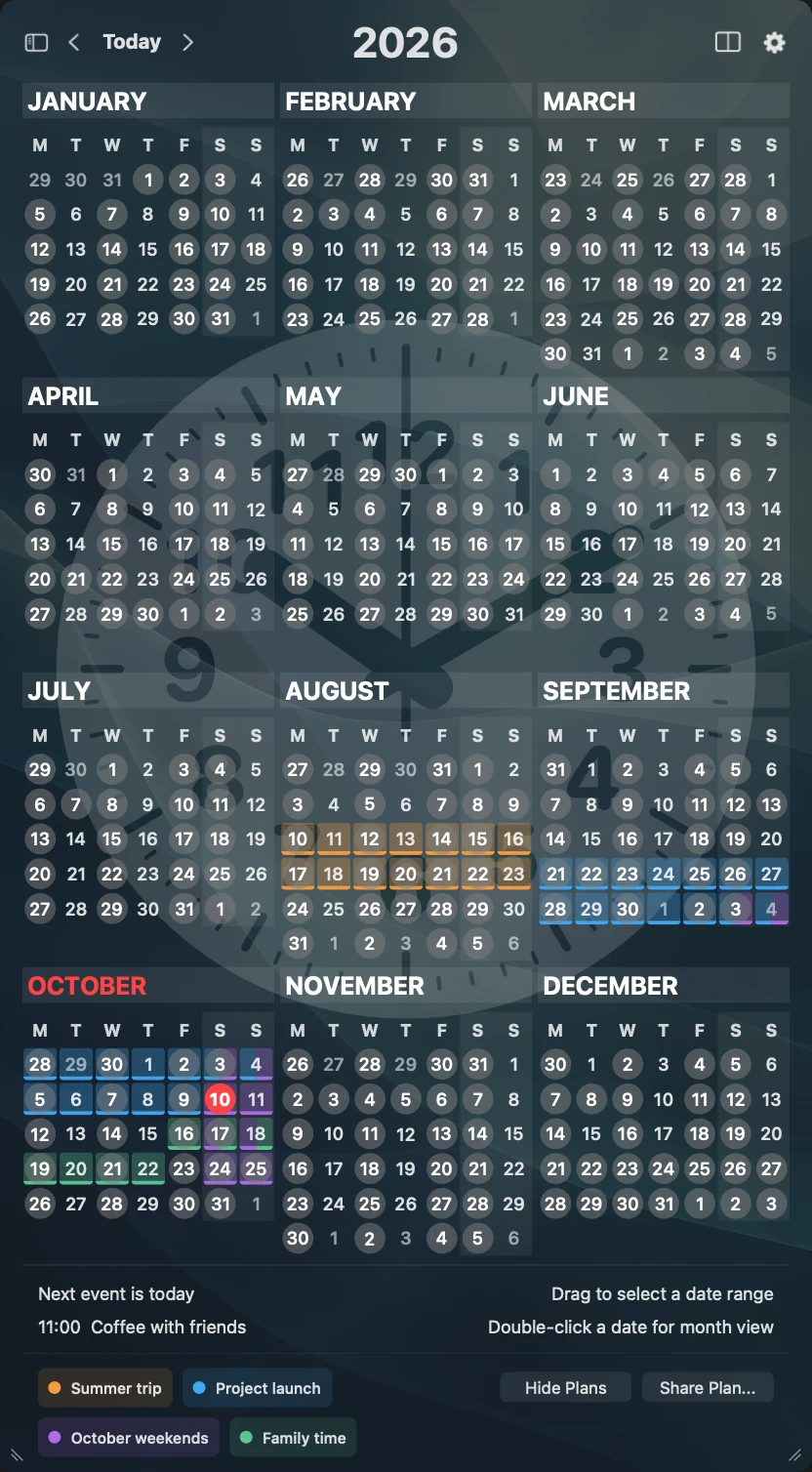
Pick your days, check how many working days you need, and save the trip in its own color. Compare it with other plans before sharing your dates.
Show all-day and multi-day events from chosen calendars as bands that update automatically. Add colored saved ranges for plans you have not put in a calendar yet.
Select 28 days, choose two colors, and repeat 28 days on, 28 days off across months and years. Use any block length, forever or for a set number of blocks.
Share a plan
Export a PNG or a print-friendly PDF. Choose the month layout, keep plan names and colors, and add a legend or space for notes. Calendar event names and details stay hidden by default.

Export one year or two consecutive years. Compact mode hides empty month rows and stacks the years vertically when each has only one row left. Repeating plans export the displayed period.
User guideMouse and keyboard controls on Mac See the iPhone and iPad guide
Select dates your way
A month's weekends. A few days in each year. Build one selection from separate groups, and leave the days between them out of your plans.
Hold Option and drag a rectangle across the calendar. Pick a month's weekends in one gesture, without selecting the weekdays between them.
Control-click or Control-drag to add or remove dates and ranges. Hold Control and Option together to add or remove a rectangular block.
Command-Option-drag moves the entire selection while keeping the gaps. Undo and redo work with multiple selections, so you can try another plan.
Your groups stay separate when you save them, restore windows, copy a summary, export a screenshot, or transfer your setup to another Mac.
See every selection shortcutRoom for the bigger picture
From a long weekend to a year-long project, see how your plans fit together without losing the details.
Give each Calendar Set its own time window. Show events starting inside or outside it, including overnight periods and a separate choice for all-day events.
Turn all-day and multi-day events from chosen calendars into colored bands. See trips, PTO and on-call weeks across months and years, with updates from the source events.
Count events, total duration, occupied time, and distinct start times on your selected dates, not the gaps between them. Distance and event statistics appear together. Overlapping events count once in occupied time.
Open one month or two side by side with a shared agenda. See events across your selected dates, or look ahead to today, tomorrow, or the next 7 days.
Choose working weekdays and exclude all-day events from selected holiday or time-off calendars. Or enter a starting date and a number of days or working days to select a range.
Save named groups of calendars with their own event hours and bands. Switch between Work, Personal or another set without changing your calendar accounts.
Get a signal every 15, 30, 60 or 120 minutes. Choose a sound or your own audio, count the hour or hear it spoken. Follow working days or rotations and stay quiet during meetings.
Animate your background clock while the app is visible. On Mac, also show a screen-edge glow or corner clock without interrupting your work. Adjust intensity or use clock effects alone.
Duplicate a saved range or Calendar Set, then change what you need. Keep the original plan, rotation or calendar setup intact while trying a variation.
Full-display workspace
Open a full-screen calendar from the menu bar or a keyboard shortcut. Keep a month beside two years, adjust opacity, and press Escape to return to your work. The layout adapts to wide and portrait displays.

Put an analog, digital or hybrid clock behind the calendar. Choose a photo, one of 12 built-in backgrounds, a solid color or a gradient. Adjust calendar text and give year-view event counts their own size and color.
User guideMac can signal across your desktop. On iPhone and iPad, iOS manages background notifications. Spoken time and visual clock effects require the app to be active.
Time signals on Mac
A quiet glow at the edge of the screen. A clock that sways like a gong. Choose a signal you can hear, see, or catch out of the corner of your eye.
Clock effects can run on their own. Adjust intensity for a subtle reminder or a noticeable signal on a dedicated display. Reduce Motion is respected.
Set up your chimesMac
Take a closer look
From the whole year to the next few days. Explore current app views, captured with sample events.
View full sizeA transparent calendar window on the desktop. No native widget size limits.
 View full size
Keep daily detail beside the year ahead, with readable date cells.
 View full size
Read the day's events without losing the surrounding months and years.
View full sizeDedicate a display to a month, two years, and a live clock. Readable dates and beautiful backgrounds make room for what's coming next in your life.
 View full size
Check the saved ranges you want to see. Each keeps its own color in the calendar and legend, including overlapping plans and separate groups of dates. Hide them without deleting them.
View full sizeSelect 28 days, choose two colors, and see 28 days on followed by 28 days off. Use any block length, repeat forever or choose a total number of blocks, including the first.
 View full size
Export one year or two consecutive years. Compact mode hides empty month rows and stacks the years vertically when each has only one row left. Repeating plans export the displayed period.
 View full size
Pick weekends in one month and a few Mondays in the next. Both months share an agenda, and totals count only the selected dates.
View full sizeThree widget types with independent backgrounds and click actions.
 View full size
Choose calendars, event hours and bands in a dedicated editor. Each saved set keeps its own settings.
Automation documentation
Open a calendar set, ask for dates or count working days in Apple Shortcuts. Mac scripts and apps can also use the CLI and URL scheme. Sensitive automation access is off by default.
Build workflows with calendar sets, confirmed date ranges, saved plans, working days, and calendar images.
Integrate popCalendar with your Dock replacement or other Mac tools. Open calendars, choose dates, manage plans and export images through the CLI.
Open a calendar window, anchored popup, or full-screen overlay from another Mac app.
A companion to your calendars
Use calendar accounts configured on each device. Create and edit events in writable calendars, filter sets by time of day, and show trips or time off as automatic colored bands. Your calendar provider handles event sync. iCloud separately syncs your popCalendar planning library.
User guideBackground Widget Mode is a Mac calendar window placed behind other windows. It is freely resizable, supports the full calendar interface and can have a transparent background. Apple widgets use system sizes and offer Calendar, Today and Clock views on Mac, iPhone and iPad.
Yes, on Mac. Set a full-screen shortcut in Settings > Windows > Shortcuts. Choose the display in Windows > Opening. Escape closes the overlay without changing your desktop or opening a new macOS Space.
Today and Clock widgets can use separate time zones on Mac, iPhone and iPad. Each Mac calendar window can also have its own zone. Today's date and day boundaries follow the chosen zone, while event data stays unchanged.
Sensitive automation permissions are off by default. Enable only the required switches in Automation & Privacy on each device. Basic Open Calendar shortcuts remain available. Returning a selected date range always requires your confirmation.
Yes. popCalendar is a universal app for Mac, iPhone and iPad. One App Store purchase covers all three using the same Apple Account. Existing Mac App Store owners can download the iPhone and iPad app at no additional cost. Setapp covers only the Mac edition and does not include the iOS app.
Saved ranges and their repetition settings, calendar sets, list order and working-day rules sync in your private iCloud account. Sync is enabled by default when available and can be disabled on each device. Calendar events stay with their calendar providers. Photos, appearance and device permissions do not sync.
Yes. Choose Visual for a screen-edge glow or corner clock, or Background clock only to animate a visible calendar clock without sound or screen overlays. Signals do not interrupt clicks or typing. Keep popCalendar running and your Mac awake and unlocked. Hidden calendars stay closed.
Yes. Save one continuous range, enable Repeat in alternating blocks, and choose the second color. Blocks have the same number of days and follow without gaps. Choose Forever or a total number of blocks including the original. These are visual saved plans, not new events in your calendar accounts.
Yes. Select plans in Saved Ranges and choose Export Plan. Export a PNG or PDF with the colors, legend and details you want. Event names and details are hidden by default. Saved-plan exports cover one year or two consecutive years.
popCalendar requires macOS 12 Monterey or later, iOS 17 or later, or iPadOS 17 or later. The layout adapts to your screen and window size.
No. You can browse dates and measure date ranges without calendar access. Access is only needed to show and edit your events or use existing holiday and time-off calendars in working-day counts.
popCalendar shows events from calendar accounts configured on your device. On Mac, supported actions can also open Apple Calendar, Fantastical including its Mini Window, BusyCal, Google Calendar, Outlook.com or Microsoft 365. External apps must be installed, and web destinations use your browser account. Choosing a destination does not connect or sync an account.
Yes. Choose your working weekdays, then optionally select holiday or time-off calendars already on your Mac. Their all-day events are excluded from working-day counts, and overlapping days off count once. Holiday calendars are not downloaded automatically. Planning > Select Dates can select a range from a starting date and a number of days or working days.
The apps have no advertising or developer-operated analytics. Plans can stay on your device or sync through your private iCloud account. The Setapp edition includes separate licensing and usage reporting. Location suggestions go to Apple Maps. This website uses Plausible separately from the apps. See the privacy policy for details.
Read the privacy policyA note from Ighor
For years, popCalendar was my favorite calendar. One click in the menu bar gave me the whole year, in a view that felt simple and complete. It became one of those little apps I used without thinking about it.
It began with a calendar I did not want to lose. It became the calendar I had always wanted to use.
Read how and why I made popCalendar
Something good is on the calendar
For your next trip, your next project, and the days in between.
Available for Mac, iPhone and iPad.One universal App Store purchase. No subscription.

See the App Store for current local pricing.
New in v1.2.3 - popup menu and date action fixes