Make room for a holiday
Pick your days, check how many working days you need, and save the trip in its own color. Compare it with other plans before sharing your dates.
Your calendar, a little further ahead
See your calendar at a glance, select the dates that matter, and turn trips, projects, or work rotations into colored plans. Share a clear picture while keeping private event details hidden.
US $9.99 one-time purchaseNo subscription. macOS 12 or later.

A month, a year, or two years side by side.
Select dates for day counts, working days, and event totals.
Send a calendar image with just the details you choose.
30 seconds with popCalendar
See named plans together, follow a repeating work schedule, and preview a compact image to share. Or switch demos to explore date selection and clocks.
Rendered from the app with sample events, on a supplied Mac desktop background. Open video
Rendered from the app with sample events, on a supplied Mac desktop background. Open video
Rendered from the app with sample events, on a supplied Mac desktop background. Open video
Saved plans and repeating rotations
A trip, a project, time with family. Give each plan a name and a color, then see them together without creating calendar events.
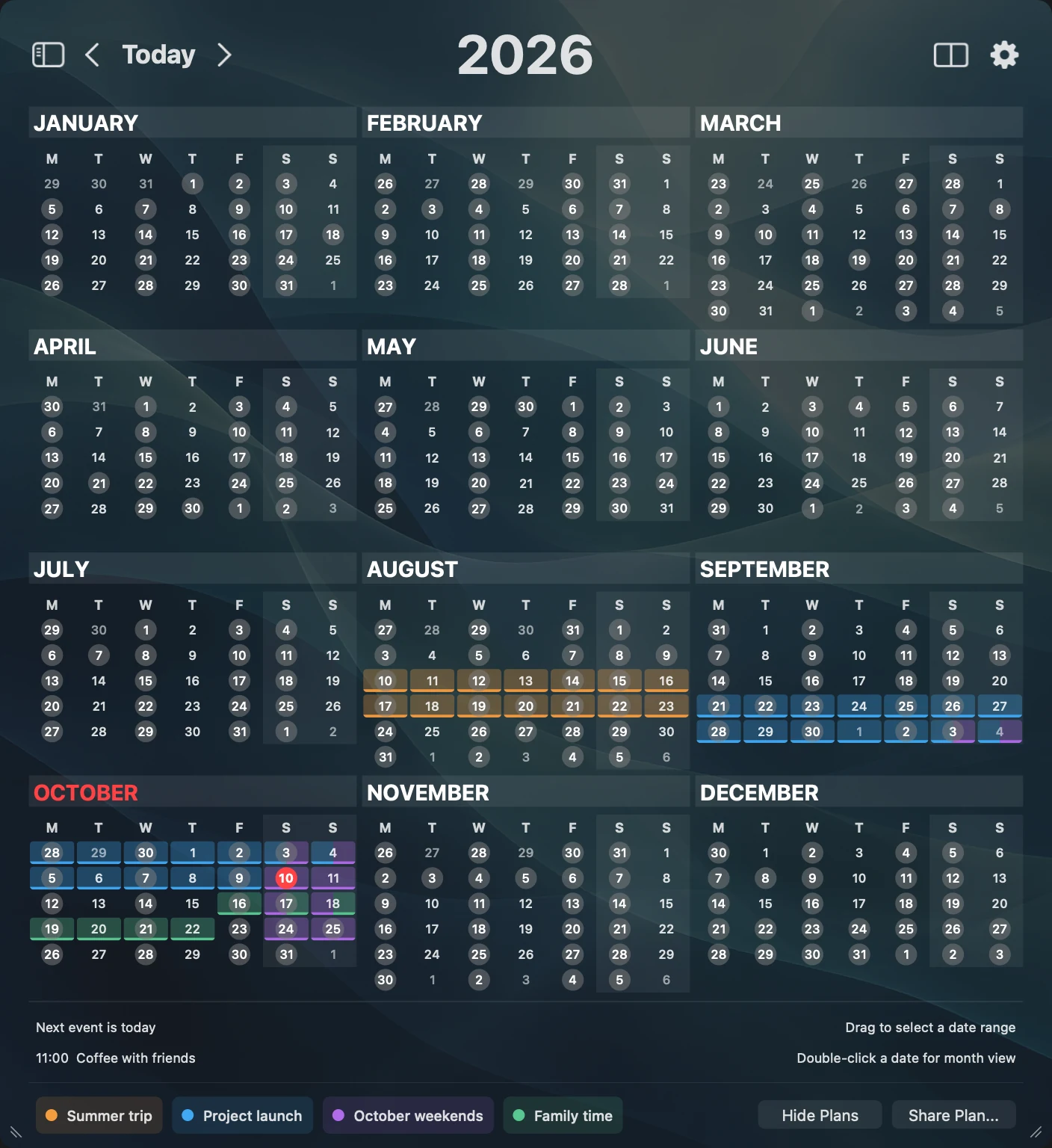
Pick your days, check how many working days you need, and save the trip in its own color. Compare it with other plans before sharing your dates.
Show all-day and multi-day events from chosen calendars as bands that update automatically. Add colored saved ranges for plans you have not put in a calendar yet.
Select 28 days, choose two colors, and repeat 28 days on, 28 days off across months and years. Use any block length, forever or for a set number of blocks.
Share a plan
Choose what goes into the image. Keep your plan names and colors, hide the clock and background, or switch to light mode. Calendar event names and details are hidden by default.

Plan exports cover one year or two consecutive years. Compact mode hides empty rows of three months, so a December-to-January trip stays together. Repeating plans export the displayed period.
User guideSelect dates your way
A month's weekends. A few days in each year. Build one selection from separate groups, and leave the days between them out of your plans.
Hold Option and drag a rectangle across the calendar. Pick a month's weekends in one gesture, without selecting the weekdays between them.
Control-click or Control-drag to add or remove dates and ranges. Hold Control and Option together to add or remove a rectangular block.
Command-Option-drag moves the entire selection while keeping the gaps. Undo and redo work with multiple selections, so you can try another plan.
Your groups stay separate when you save them, restore windows, copy a summary, export a screenshot, or transfer your setup to another Mac.
See every selection shortcutRoom for the bigger picture
From a long weekend to a year-long project, see how your plans fit together without losing the details.
Give each Calendar Set its own time window. Show events starting inside or outside it, including overnight periods and a separate choice for all-day events.
Turn all-day and multi-day events from chosen calendars into colored bands. See trips, PTO and on-call weeks across months and years, with updates from the source events.
Count events, total duration, occupied time, and distinct start times on your selected dates, not the gaps between them. Distance and event statistics appear together. Overlapping events count once in occupied time.
Open one month or two side by side with a shared agenda. See events across your selected dates, or look ahead to today, tomorrow, or the next 7 days.
Choose working weekdays and exclude all-day events from selected holiday or time-off calendars on your Mac. Or enter a starting date and a number of days or working days to select a range.
Search calendars by name or account and save a Calendar Set with its own event hours and bands. Switch sets from the gear menu, independently in each window.
Get a signal every 15, 30, 60 or 120 minutes. Choose a sound or your own audio, count the hour or hear it spoken. Follow working days or rotations and stay quiet during meetings.
A screen-edge glow, a corner clock or a background clock that sways, resonates or sends a light wave. Adjust intensity and use clock effects alone, without sound or screen overlays.
Duplicate a saved range or Calendar Set, then change what you need. Keep the original plan, rotation or calendar setup intact while trying a variation.
Full-display workspace
Keep a month and its events beside two years in a fullscreen window. Browse each panel independently, with a live clock and your favorite background behind the calendar.

Make it your own with analog, digital, and hybrid clocks, personal photos, and adjustable calendar text and colors.
User guideNew in v1.0.5
A quiet glow at the edge of the screen. A clock that sways like a gong. Choose a signal you can hear, see, or catch out of the corner of your eye.

Clock effects can run on their own. Adjust intensity for a subtle reminder or a noticeable signal on a dedicated display. Reduce Motion is respected.
Set up your chimesTake a closer look
From the whole year to the next few days. Explore current app views, captured with sample events.
View full sizeDedicate a display to a month, two years, and a live clock. Readable dates and beautiful backgrounds make room for what's coming next in your life.
 View full size
Check the saved ranges you want to see. Each keeps its own color in the calendar and legend, including overlapping plans and separate groups of dates. Hide them without deleting them.
View full sizeSelect 28 days, choose two colors, and see 28 days on followed by 28 days off. Use any block length, repeat forever or choose a total number of blocks, including the first.
 View full size
Plan exports cover one year or two consecutive years. Compact mode hides empty rows of three months, so a December-to-January trip stays together. Repeating plans export the displayed period.
 View full size
Pick weekends in one month and a few Mondays in the next. Both months share an agenda, and totals count only the selected dates.
 View full size
Four selected days, not the five-day span between them. Day totals and event statistics reflect your selection, and Copy Summary keeps the separate groups.
 View full size
Explore 27 clock presets, from quiet dials and digital fonts to orbital, rotating-ring, and hybrid designs. Choose a preset, then make it your own.
 View full size
Choose calendars, event hours and bands in a dedicated editor. Each saved set keeps its own settings.
 View full size
A reminder that can fill your display or use just part of it. Choose the screen, size, animation, and background.
View full sizeA screen-edge glow and corner clock over the real calendar. Signals fade without taking focus or blocking clicks and typing.
A companion to your calendars
See events from calendar accounts already configured on your Mac. Create and edit events in writable calendars, filter sets by time of day, and turn trips or time off into automatic colored bands. macOS handles account sync.
User guideYes. Choose Visual for a screen-edge glow or corner clock, or Background clock only to animate a visible calendar clock without sound or screen overlays. Signals do not interrupt clicks or typing. Keep popCalendar running and your Mac awake and unlocked. Hidden calendars stay closed.
Yes. Save one continuous range, enable Repeat in alternating blocks, and choose the second color. Blocks have the same number of days and follow without gaps. Choose Forever or a total number of blocks including the original. These are visual saved plans, not new events in your calendar accounts.
Yes. Check plans in Saved Ranges, then choose Export Plan. Choose appearance, backgrounds, clocks, event circles, event bands and the legend before copying or saving a PNG. Event names and details are hidden by default. Plans must fit within one year or two consecutive years. For repeating plans, select those years in the calendar first.
popCalendar requires macOS 12 Monterey or later.
No. You can browse dates and measure date ranges without calendar access. Access is only needed to show and edit your events or use existing holiday and time-off calendars in working-day counts.
popCalendar displays events from calendar accounts configured on your Mac. It can also hand supported actions to Apple Calendar, Fantastical including its Mini Window, BusyCal, Google Calendar, Outlook.com, or Microsoft 365. External apps must be installed, and web calendars use the account signed in to your browser. Available actions vary by destination. Choosing a destination does not connect or sync an account.
Yes. Choose your working weekdays, then optionally select holiday or time-off calendars already on your Mac. Their all-day events are excluded from working-day counts, and overlapping days off count once. Holiday calendars are not downloaded automatically. Planning > Select Dates can select a range from a starting date and a number of days or working days.
Neither edition includes advertising or developer-operated analytics. Your saved ranges and preferences stay on your Mac. The Setapp edition includes Setapp's licensing and app usage reporting. Location suggestions go directly to Apple Maps, and this website uses Plausible analytics separately from the app. See the privacy policy for details.
Read the privacy policyA note from Ighor
For years, popCalendar was my favorite calendar. One click in the menu bar gave me the whole year, in a view that felt simple and complete. It became one of those little apps I used without thinking about it.
It began with a calendar I did not want to lose. It became the calendar I had always wanted to use.
Read how and why I made popCalendar
Something good is on the calendar
For your next trip, your next project, and the days in between.
US $9.99 one-time purchaseNo subscription. macOS 12 or later.
Get popCalendarUS Mac App Store price. Local prices may vary.
New in v1.0.5 - chimes, clock effects and duplication